
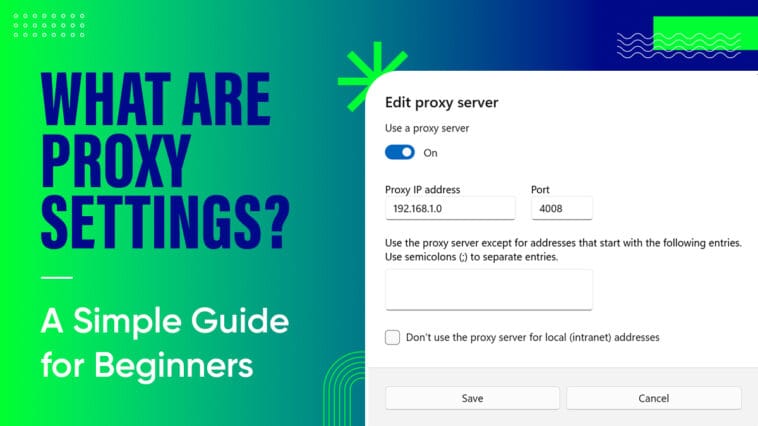
You’ve probably heard of “proxy settings” being mentioned when someone tweaks their Wi-Fi connection — but what does it really mean? In this guide, we’ll break down what “ WiFi proxy settings” are, how they apply to a WiFi connection, why you might use them (or skip them), and exactly how to set them up on iOS, Android, and more. If you’re new to this topic, you’ll walk away knowing the pros, the cons, and how to handle everything with confidence.
What exactly are proxy settings (and how do they relate to Wi-Fi)?
At its core, a proxy server acts as an intermediary between your device and the wider internet. Instead of your device connecting directly to a website or service, your request is first routed through a proxy server, which then forwards it onward.
When we discuss WiFi proxy settings, we refer to configuring your device’s WiFi network connection so that all of your internet traffic is sent through a proxy server, rather than being sent directly. On a typical home WiFi network, your device connects straight to the internet via your router and ISP — with a proxy configured, you instead tell the device (or router) “go through this additional server first.”
Here’s a helpful analogy: Think of your device as someone mailing a letter. Normally, you write the letter, put it into the post, and the postal service sends it directly to the recipient. With a proxy, you hand the letter to a receptionist (the proxy) who then posts it on your behalf. When the reply arrives, it comes back to the receptionist first, then the receptionist gives it to you. You’re still sending the letter, but via that middle step. That middle step is what “proxy settings” create for internet traffic.
Why use proxy settings? The motivations
There are several common reasons people (or companies) might use proxy settings on a WiFi connection:
Privacy & Anonymity
Because the proxy server makes the request on your behalf, the destination website sees the proxy’s IP address rather than your own device’s IP. This helps mask your location or identity.
In public WiFi hotspots, especially, your device’s data might be exposed; routing via a proxy adds a layer of abstraction.
Bypassing restrictions or geo-blocks
If you’re in a location where certain websites or services are blocked, using a proxy that’s outside those restrictions may allow access.
Likewise, if your network admin has restricted access, a proxy may help (with caveats) to route around some of those barriers.
Performance / caching
In some setups (especially business or school networks), a proxy may cache frequently-accessed content. That means when you reconnect or revisit the same resource, the proxy may serve it faster than fetching it from the internet again.
Network control (for organizations)
Companies often use proxy settings to monitor, filter, or manage which sites devices on the WiFi can access. The proxy becomes a control point.
How proxy settings work under the hood
Here’s a breakdown of the typical flow when a proxy is used on a WiFi connection:
- Your device (phone, laptop, tablet) is connected to a WiFi network.
- You configure the WiFi network’s proxy settings (manually or automatically).
- When you request a website or service, instead of your device sending the request directly to the website’s server, it sends it to the proxy server first.
- The proxy server receives your request, then makes the request on your behalf to the destination website or service.
- The website responds — the response goes back to the proxy server.
- The proxy then forwards the response back to your device.
- From your device’s perspective, you get the website or service response, but the website sees the proxy’s IP address rather than yours.
Because you’re adding an extra hop (device → proxy → destination → proxy → device), there can be slightly more latency. And because the proxy has visibility of your requests, trust and security matter.
Types of proxy configurations relevant for Wi-Fi
When dealing with WiFi proxy settings, you’ll encounter different types and modes. Here are the main ones:
- Manual proxy: You enter the proxy server’s IP address (or hostname) and port yourself. Then, optionally, a list of addresses to bypass the proxy. On iOS/Android, this is labelled Manual.
- Automatic proxy (PAC file / script): A Proxy Auto-Configuration (PAC) file is a JavaScript file that instructs which proxy or direct connection to use for each URL. You supply a URL pointing to the PAC file, and your device automatically configures itself.
- Transparent proxy: The device may not have explicit proxy settings; instead, the network intercepts your connections and routes them via a proxy server without your device’s knowledge. This method is common in enterprise (business) WiFi networks.
- HTTP/HTTPS proxy vs SOCKS proxy: Some proxies handle only web traffic (HTTP/HTTPS), others (like SOCKS) can handle broader protocols. While most WiFi proxy settings you’ll configure are HTTP/HTTPS type.
How to set up WiFi proxy settings on common devices
Here’s a step-by-step for typical devices. Note: exact menus may differ with OS version.
iOS
- Go to Settings → WiFi.
- Tap the info icon (ℹ️) next to the WiFi network you’re connected to
- Scroll to Configure Proxy
- Select Off (no proxy)
- Select Manual: enter Server (IP/hostname), Port; optionally, authentication and bypass list.
- Select Automatic: enter the URL of the PAC file/script.
- Tap Save.
Android
- Go to Settings → Network & Internet → WiFi
- Tap the WiFi network, then Modify network (gear icon or long-press)
- Tap Advanced options → under Proxy select: None / Manual / Proxy auto-config
- If Manual: enter Proxy hostname, Port, optionally bypass list
- If Auto-config: enter the PAC file URL
- Save changes.
Windows & macOS
- Windows: Settings → Network & Internet → Proxy. Choose Automatic setup (use script) or Manual setup (Enter server + port)
- macOS: System Settings → Network → WiFi → Advanced → Proxies tab. Choose protocol (Web proxy, Secure Web proxy, etc) and enter details.
These platforms allow system-wide proxy settings or per-network adjustments.
Common mistakes, troubleshooting tips & gotchas
Proxy settings can be powerful — but also fragile if misconfigured. Here are common issues and tips:
- Wrong proxy server IP or port → no internet connection.
- PAC file URL is incorrect or unreachable → automatic proxy fails.
- Authentication required by proxy, but credentials missing → blocked access.
- Bypass list missing important addresses → performance issues or unwanted routing.
- Proxy overloaded or slow → latency increases.
- Forgetting to Save changes after modifying settings.
- Device compatibility issues: Some apps may ignore device-level proxy or have hard-coded connections.
- On public WiFi: The network itself might force its own proxy or captive portal, interfering with your proxy choice.
If you get no internet or very slow browsing after configuring a proxy, switch back to None/Off to verify it’s the proxy configuration causing the issue. Then tweak settings.
When you shouldn’t or may not want to use proxy settings
- On a trusted home WiFi network where you don’t need anonymity or bypassing, the direct connection is simpler and often faster.
- When you need maximum speed and the proxy server is distant or congested.
- If you don’t trust the proxy provider, using an untrusted proxy can expose your data.
- For sensitive applications (banking, confidential business apps), the proxy must be secure and trusted.
- In networks that enforce their own proxy/firewall rules, setting your own may conflict with them.
Security and privacy considerations
Here’s what to watch out for:
- Trustworthiness of the proxy provider: A proxy sees your traffic — treat it like you’d treat a server you’re routing through. If it’s malicious, your data may be logged or manipulated.
- Encryption: Proxy servers may support encryption (HTTPS proxies), but many do not. A proxy helps hide your IP but doesn’t necessarily encrypt all traffic — unlike a true VPN.
- Data exposure: If you’re using public WiFi and set a proxy that doesn’t encrypt traffic, your data may still be intercepted.
- Difference vs VPN: A proxy masks IP and routes traffic but often doesn’t encrypt everything. A VPN typically creates an encrypted tunnel for all device traffic. Use the right tool for your needs.
- Bypassing restrictions responsibly: Some networks forbid bypassing controls; doing so may violate terms of service or corporate policy.
- Free proxies risks: Many free proxy services are unstable or insecure. A recent study found that many free proxies were inactive or vulnerable.
How proxy settings relate specifically to WiFi networks
Using a proxy over WiFi vs wired or mobile networks has some distinctions:
- Public WiFi hotspots: Because many devices share the network and security is weaker, using a proxy (or better yet VPN) helps protect you from snooping.
- Corporate WiFi: Businesses may enforce proxy settings at the router/network level. Your device’s WiFi configuration might inherit those rules, or you may need to set it manually for certain sub-networks.
- Device-level vs network-level: On a device, you configure the proxy in the WiFi network settings. At network level (e.g., via router or gateway), the network may force transparent proxy for all devices — you may not see a setting.
- Captive portals: Some WiFi networks intercept HTTP traffic until you log in. A configured proxy may interfere with how the portal redirects, so ensure you access the portal first before applying proxy settings.
- Performance considerations: On WiFi, signal strength and interference matter. Adding a proxy adds additional routing => if the WiFi signal is weak or the proxy is far, latency will jump. Always test after setting.
Verdict
At the end of the day, knowing how to manage WiFi proxy settings isn’t just a techie trick—it’s about taking control of how your device connects and what information it shares. If you set up a proxy thoughtfully—on a public hotspot, in a restricted environment, or when you simply want a different route—you’ll gain flexibility, privacy, and understanding of your network path. But just as important: if you’re on your trusted home WiFi, and speed or simplicity matter more than routing through an extra server, you might skip the proxy altogether. The right move isn’t always “use a proxy,” it’s “use the right tool for the right moment.” With this guide in hand, you’re in a far better position to decide when to engage a proxy, how to configure it, and when to step away. Use it wisely, test it where it counts—and let your WiFi connection work for you, not against you.
Read more:
Unlock Your Network: Top USSD Codes You Need to Know (Airtel, BSNL, Vi, and Jio)


Comments
Loading…