
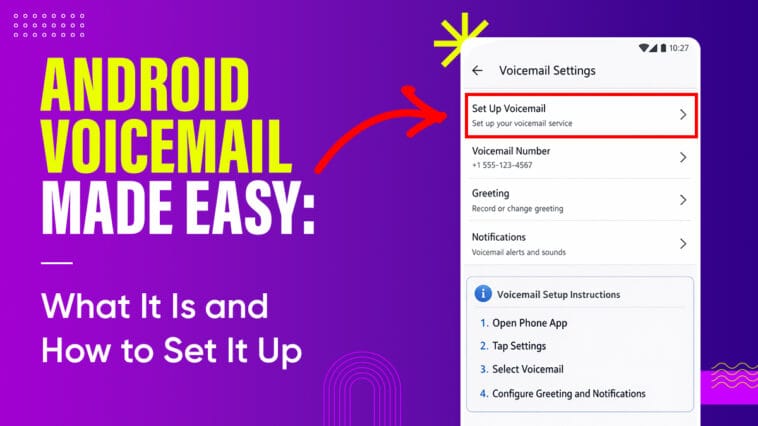
Voicemail is one of those features we all assume will just work, but rarely think about until we miss a call. On Android phones, voicemail lets people leave a message when you can’t answer, so you can catch up later. It works whether you’re driving, in a meeting, or your phone is off. What this really means is you’ll never lose an important message just because you couldn’t pick it up right away.
Let’s break it down in plain terms and walk through how it actually works, why it matters, and how to set up voicemail on your Android phone.
What Is Voicemail on Android
Voicemail is a service tied to your phone number and mobile carrier that lets callers leave an audio message if you miss a call. On Android phones, this takes two forms:
Traditional voicemail
- You call your voicemail inbox.
- You listen to messages one by one.
- You interact using key presses like you would on an old answering machine.
Visual voicemail
- You see your voicemail messages in a list.
- You can tap to listen to any message in any order.
- Some carriers even show message time, caller ID, and transcripts.
Visual voicemail feels more like email than the old system because you can manage your messages more flexibly.
Why Voicemail Still Matters
Here’s the thing: even with texting and apps like WhatsApp, real phone calls are still a thing. And when someone can’t reach you, voicemail fills in the gap.
Voicemail gives you:
- A way for callers to leave a detailed message.
- A backup when you’re out of service or busy.
- Personal greetings that set expectations for callers.
It’s especially useful for work numbers and situations where you need the context that a quick voicemail gives you.
Traditional Voicemail vs Visual Voicemail
Traditional voicemail is what most people think of when they hear “voicemail.” You dial into your voicemail service and listen sequentially.
With visual voicemail:
- Your messages are shown in a list inside the Phone app or a dedicated voicemail app.
- You choose which messages to play first.
- Some phones and carriers offer message transcription, so you can read what was said.
Not all carriers support visual voicemail, and in some cases it’s a paid add-on. But when it’s available, it makes managing voicemails much easier.
How to Set Up Voicemail on Your Android Phone
The setup process varies slightly depending on your carrier, but the “Direct Dial” method works on almost every Android device worldwide.
Method 1: The “Long-Press 1” Strategy (Universal)
- Open your Phone app.
- Open the Dial Pad.
- Press and hold the 1 key. Your phone will automatically dial your carrier’s voicemail system.
- If prompted, enter a temporary PIN (usually the last four digits of your phone number or “1234”).
- Follow the voice prompts to:
- Set a permanent security PIN.
- Record your name.
- Record a custom greeting.
Method 2: Through the Settings Menu
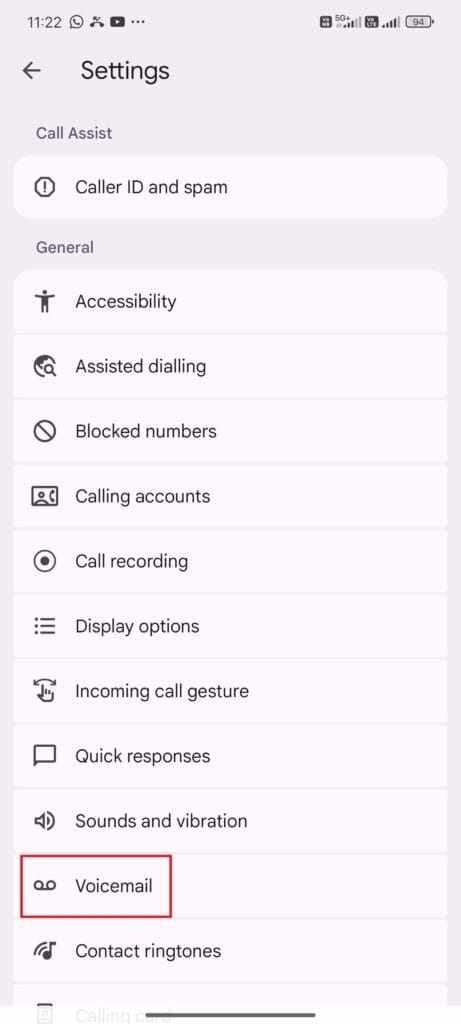
- Open the Phone app.
- Tap the hamburger menu (top left) and select Settings.
- Scroll down and tap Voicemail.
- Tap Advanced Settings > Setup. Here you can verify your voicemail number or manage your notification preferences.
Customizing Your Voicemail
Once voicemail is working, you can tweak things:
Change your greeting
Record something new or more professional if your situation changes.
Change your voicemail PIN
This keeps your inbox secure. Usually you’ll do this by calling into voicemail and following the prompts.
Voicemail notifications
You can decide if you want a sound alert, vibration, or badge on the Phone app when a new voicemail arrives.
Troubleshooting Common Voicemail Issues
Sometimes, technology doesn’t play nice. Here are the most common fixes:
- No Notifications: If you aren’t seeing the “tape recorder” icon when you get a message, go to Settings > Apps > Phone > Notifications and ensure all alerts are toggled ON.
- Forgotten PIN: You usually cannot reset this on the phone itself. You must log into your carrier’s mobile app (e.g., the “My Verizon” or “T-Mobile” app) to reset your voicemail password.
- “Mailbox Full”: Visual Voicemail sometimes keeps “deleted” messages in a trash folder. Ensure you empty your “Deleted Messages” folder to make room for new ones.
FAQs
Generally, yes. However, using Visual Voicemail on some older plans may use a small amount of cellular data.
Yes. Dial your own number from another phone, wait for the greeting, then press * or # (depending on the carrier) and enter your PIN.
Not all carriers or regions support the integrated Android VVM. If your Phone app doesn’t have a voicemail tab, check the Play Store for your specific carrier’s voicemail app.
Conclusion
Voicemail on Android isn’t complicated, but it is something worth setting up. It makes sure no message goes unheard when you can’t take a call. Whether you stick with the traditional dial-in method or take advantage of visual voicemail’s modern interface, the most important part is that it works for you. Follow the steps above, and you’ll never miss a message again.


Comments
Loading…