
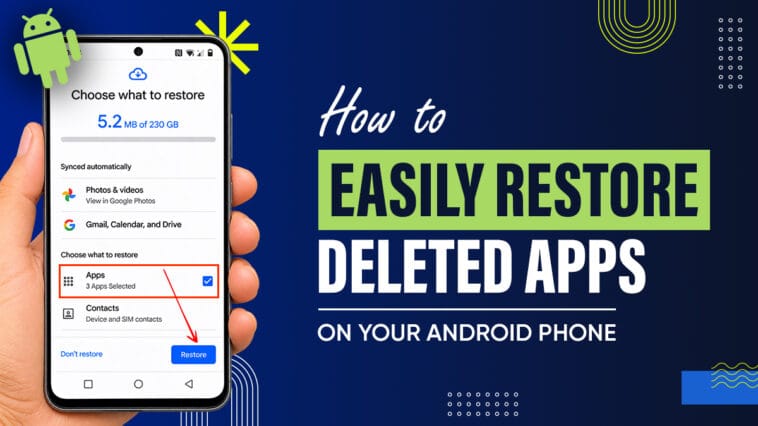
To restore deleted apps on Android, open the Google Play Store, tap your profile picture, choose Manage apps & device, and open the Manage tab. Then change the filter at the top to Not installed. That list shows every app your Google account has downloaded that isn’t on this phone right now. Tick the apps you want back and tap the download icon. Paid apps reinstall without a second charge, because the purchase belongs to your Google account, not your phone.
That fixes most cases in under a minute. If the app isn’t in the list, one of two things usually happened. Either it came from somewhere other than Google Play, such as the Galaxy Store or an APK file, or it was never actually deleted. Android can archive, disable, or hide apps, and each of those has a different fix to restore deleted Apps on your Android Phone.
Check first: is the app really deleted?
Look at your home screen, your app drawer, and Settings > Apps, then match what you see:
What you see | What probably happened | Possible Fixes |
Faded icon with a small cloud or download badge | The app was archived | Tap the icon |
In the app drawer but not on the home screen | Only the shortcut was removed | Long-press it in the drawer and drag it back |
Not in the drawer, but listed in Settings > Apps | It’s disabled or hidden | Enable or unhide it |
Not anywhere on the phone | It was uninstalled | Reinstall it from the store |
Restore deleted apps from the Google Play Store
This method works on any phone with Google Play, including Samsung, Xiaomi, Oppo, Vivo, Realme and Pixel.
- Open the Play Store.
- Tap your profile picture in the top-right corner.
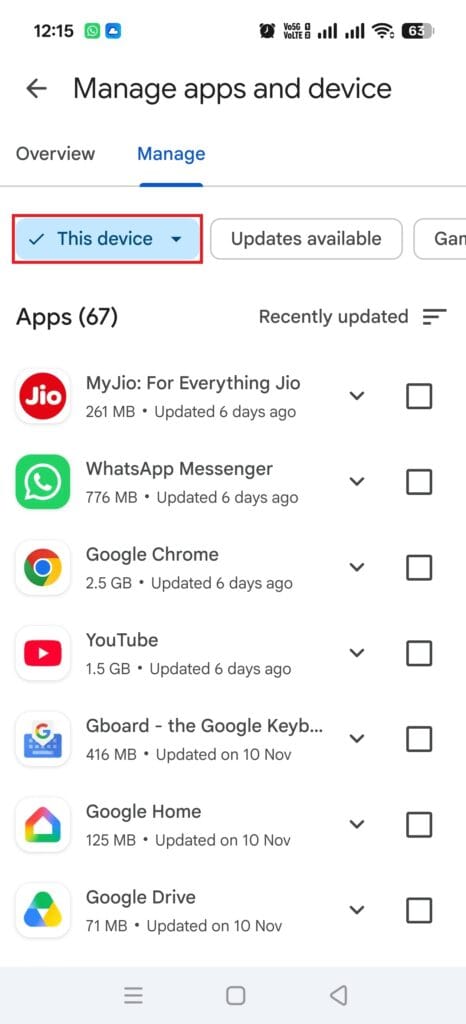
- Tap Manage apps & device, then the Manage tab.
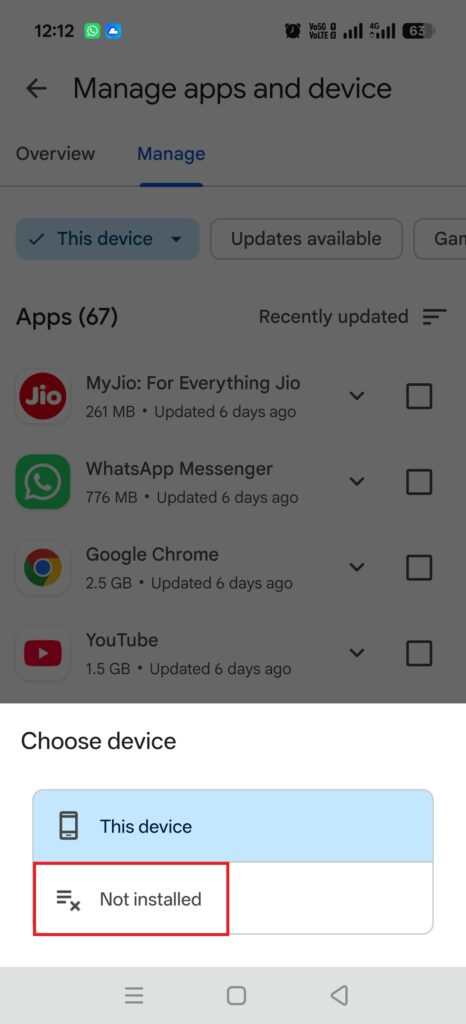
- Tap the filter at the top (it may read Installed or This device) and choose Not installed.
- Check the box next to each app you want, then tap the download icon. You can select several at once.
If you’re sure you had an app but it’s missing from the list, check which account is selected. Many phones have two Google accounts signed in, such as a personal Gmail and a work account, and the Play Store only shows the history of the active one. Tap your profile picture, switch accounts, and check the Not installed list again to restore deleted Apps on your Android Phone.
If you’ve used the same account for years, the list can run to hundreds of apps. Use the sort button to show recently added apps first, or search for the app by name. If its listing shows Install instead of Open, it isn’t on your phone.
Older guides often say to go to My apps & games > Library. That menu was replaced by Manage apps & device, so if you can’t find it, you haven’t done anything wrong.
Reinstall from a computer
Go to play.google.com and sign in with the same account. Click your profile picture, choose Library & devices, find the app, click Install, and pick your phone from the device list. The app downloads to your phone the next time it’s online.
Restore archived apps
When Android archives an app, it removes the app’s software, permissions, and temporary files and stops its notifications. It keeps the icon and your data. Google Play can archive unused apps automatically when storage runs low, and on Android 15 and later you can also archive an app yourself.
To bring an archived app back, use any of these:
- Tap its faded icon on the home screen or in the app drawer.
- Open Settings > Apps, tap the app, then tap Restore.
- Open the app’s page in the Play Store and install it.
Because your data stayed on the phone, the app opens where you left off. Two conditions apply: the store the app came from must still be installed, and the app must still be available in it.
To stop automatic archiving, open the Play Store, tap your profile picture, go to Settings > General, and turn off Automatically archive apps. To protect a single app, open it in Settings > Apps and turn off Manage app if unused.
Turn disabled apps back on
Many preinstalled apps, such as YouTube, Chrome and your phone maker’s own apps, can’t be fully uninstalled. On these, Android offers Disable instead, which hides the app from the drawer but leaves it in Settings. Follow the steps below to restore deleted apps on your Android.
- Open Settings > Apps (some phones need See all apps).
- Find the app. Some phones let you filter the list to disabled apps only.
- Tap it, then tap Enable.
Android usually removes an app’s updates when you disable it, so open the Play Store afterwards and update it.
Restore deleted apps on Samsung Galaxy phones
Samsung phones have two stores, so check both. Apps from Google Play follow the steps above. Samsung apps, themes, watch faces and some Galaxy-only tools come from the Galaxy Store:
- Open Galaxy Store and tap Menu (three lines).
- Tap My apps.
- Tap the filter icon and turn off Show installed apps, so only removed apps stay in the list.
- Tap the download icon next to the app.
Purchased Galaxy Store items reinstall for free as long as you’re signed in to the Samsung account you bought them with.
Samsung also lets you hide apps, which looks a lot like deleting them. Open the app drawer, tap the three-dot menu, then Settings, and look for Hide apps on Home and Apps screens. Take the app off the hidden list, and it reappears. The label changes slightly between One UI versions, so look for the word “hide”.
Recover deleted games and their progress
Games reinstall through the same Play Store steps, but progress is a separate question. Games that save to Google Play Games or to their own account, such as a Supercell ID, bring your level back when you sign in. The Google Play Games app also has a Library tab with a download button next to each game you’ve played.
Some games don’t save your progress to any account. They keep it only in the phone’s storage, and uninstalling the game deletes that storage. When you reinstall one of these games, it starts again from level 1. If a game never asked you to sign in and has no “link account” or “cloud save” option in its settings, it probably works this way.
Reinstall apps you installed from an APK
Apps installed from a file never appear in Play Store history. If you still have the file:
- Open Files (or My Files on Samsung) and go to Downloads.
- Tap the APK file.
- If Android blocks it, allow Install unknown apps for your file manager when prompted, then tap Install.
If the file is gone, download it again from the developer’s official website, not a mirror site. Modified APKs are a common route for malware.
Getting your app data back
Reinstalling an app and restoring its data are two separate jobs. Whether your chats, settings and logins return depends on where the data was kept:
- On the app’s servers. Gmail, Instagram, Facebook and Spotify store everything in your account. Sign in and it’s back.
- In the app’s own backup. WhatsApp backs up chats to Google Drive and offers to restore them right after you verify your number. If you skip that screen, you’ll have to reinstall to see the offer again.
- In your Google device backup. Backup by Google One saves data for apps that support it, plus contacts, call history, SMS and settings. It only restores while you set up a new phone or after a factory reset, and Google erases it if the phone goes unused for 57 days or you turn backup off.
- Only on the phone. Offline notes, local game saves, and files inside an app with no sign-in are deleted when you uninstall it.
Don’t factory reset your phone to recover one app’s data. The reset wipes everything added since your last backup, and many apps never use Google’s backup, so you’d likely lose more than you get back.
When a deleted app won’t come back
If the app isn’t in Not installed and a search finds nothing, these are the usual reasons:
- The developer or Google removed it from the Play Store, so it drops out of your history too. Check the developer’s website for a direct download.
- It no longer supports your phone or Android version, and the Play Store hides incompatible apps.
- It isn’t offered in your country.
- You deleted it from the Not installed list at some point. Search for it by name instead.
For a paid app that disappeared, contact the developer directly. Many can restore a purchase linked to your account.
Do deleted app recovery apps work?
Rarely in the way their names suggest. Recovery apps on the Play Store mostly show the same install history you can already see under Manage apps & device. Paid desktop programs can’t reinstall an app that no store offers. Try the methods above first to restore deleted Apps on your Android Phone, and be wary of any tool that wants payment or root access before showing results.
How to avoid losing apps again
- Turn on Backup by Google One (search “Backup” in Settings) and check it occasionally.
- Keep each important app’s own backup on, especially WhatsApp.
- If you delete apps to free space, archive them instead and keep your data.
- If a child uses your phone, set up Google Family Link so apps can’t be removed by accident.
Frequently asked questions
Yes. Go to Play Store > profile picture > Manage apps & device > Manage > Not installed. Android has no separate “recently deleted” folder for apps.
No, as long as you’re signed in with the Google account that bought it you don’t need to pay again.
Usually. Purchases tied to your Google account or the app’s own account return when you sign in, and many apps have a Restore purchases button in their settings.
Read more:
How to Uninstall Mintnav on Android: Complete Removal Guide
How to Fix “Your Connection Is Not Secure” on Android (Complete 2026 Guide)

Comments
Loading…