
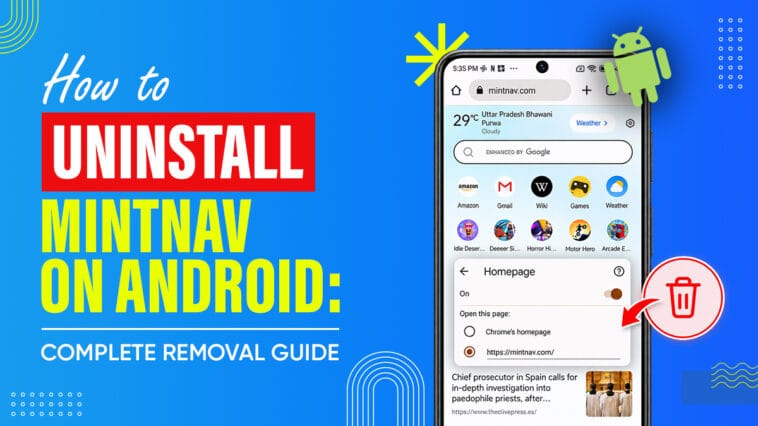
If Chrome suddenly opens to a page called Mintnav every time you launch it, nothing is installed on your phone that you can uninstall. Mintnav is a website, not an Android app, and it shows up because your browser’s homepage setting points to it. And now you are wondering how to uninstall Mintnav on Android.
Quick answer: Open Chrome, tap the three-dot menu, go to Settings > Homepage, delete the Mintnav address, and choose Chrome’s homepage. The change takes effect immediately. There is no Mintnav app in your app drawer, so searching for one to remove will get you nowhere.
What Is Mintnav on Android?
Mintnav.com is a search and content page. It has a search box, shortcut tiles, sponsored links, and a feed of suggested articles. It was originally the custom homepage for Mint Browser, Xiaomi’s lightweight browser, which is no longer distributed the way it once was.
The reason people find it on their phones has nothing to do with downloading anything. Chrome for Android supports a mechanism called partner browser customizations, documented in the Chromium source code, which lets a device manufacturer preset a homepage and a set of bookmarks before the phone ever reaches you. When an OEM uses that hook, Chrome reads the homepage value from the system and opens it on launch. That is the entity relationship worth holding onto: Mintnav is a website, Chrome is the browser, and the phone’s system software is what pointed one at the other.
Reports clustered around Xiaomi, Redmi, and POCO handsets, and many surfaced after MIUI 14 updates in 2023. It was never universal. Testing by Gadgets To Use found the preset on models like the POCO X3 Pro and Redmi Note 12 5G but not on newer devices such as the POCO F5, and also found similar custom homepage URLs shipped by Vivo, iQOO, and Tecno. Some Xiaomi phones show a near-identical page at homepage.miui.com instead.
People search for “Mintnav virus” because an unfamiliar page replacing your homepage without warning is exactly what a browser hijacker does. The suspicion is fair. The diagnosis usually isn’t.
How to Uninstall Mintnav on Android
Work through this first. It resolves most cases.
- Open Chrome.
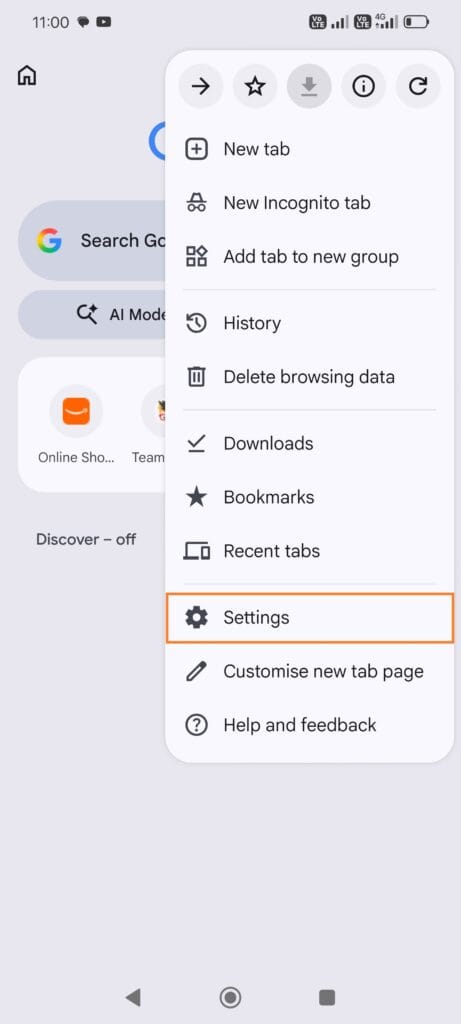
- Tap the three-dot menu in the top right corner.
- Tap Settings.
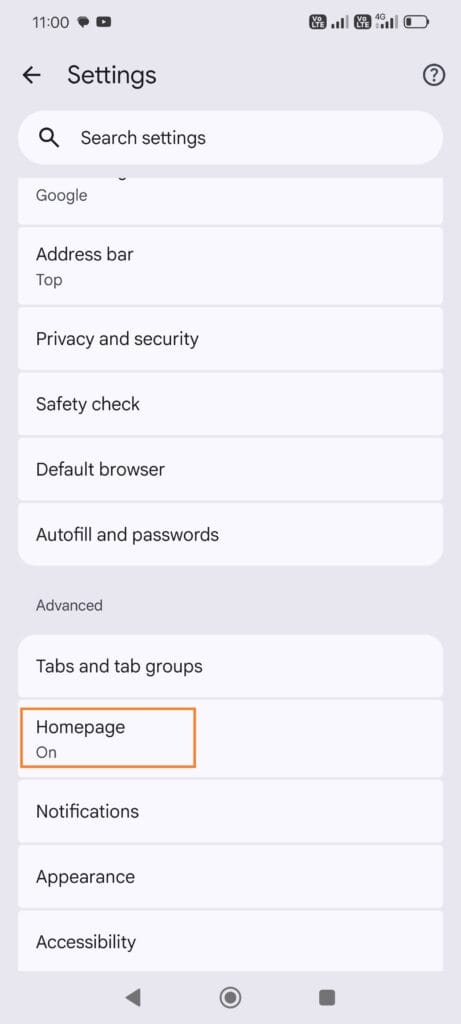
- Scroll down to the Advanced group and tap Homepage.
- If the homepage toggle is on, you’ll see the Mintnav address in the custom field. Tap it and clear it.
- Select Chrome’s homepage, or choose Enter custom web address and type something you actually want, like google.com.
- Back out of Settings and relaunch Chrome.
One detail worth knowing: on Android, Chrome treats the homepage and the startup page as the same thing. Changing this setting changes both what the home button does and what loads when you open the app.
How to Remove Mintnav from Android if It Keeps Coming Back
If the page returns after a restart, try these in order.
- Clear Chrome’s app data. Long-press the Chrome icon, tap the info button, open Storage, then Manage space and clear the data. This resets browser preferences including the homepage. You will be signed out of Chrome, so make sure your bookmarks and passwords are syncing to your Google account first.
- Update Chrome and your system software. Some devices dropped the preset in later MIUI and HyperOS builds. An update can quietly resolve it.
- Check which browser is actually opening. Settings > Apps > Default apps > Browser app. If links open in Mi Browser rather than Chrome, you have been editing the wrong homepage.
- Look at recently installed apps. If you sideloaded an APK shortly before this started, that is a separate problem worth investigating.
- Try a different browser build. Because the preset can be tied to Chrome’s package name, installing Chrome Beta, Firefox, or Edge sidesteps it entirely.
How to Remove Mintnav from Chrome on Xiaomi, Redmi, and POCO Phones
The steps are the same on these devices, but the wording shifts between MIUI, HyperOS, and Android versions. Homepage may sit under Advanced or directly in the main settings list. Storage controls may read Clear data or Manage space.
If your phone is otherwise behaving normally, no unfamiliar apps, no pop-ups outside the browser, no battery drain, a Mintnav homepage on a Xiaomi device is almost certainly the preset and not an infection.
What If Mintnav Appears in Bookmarks or Cannot Be Deleted?
Some users find entries with no delete option. These are partner bookmarks, supplied by a system component rather than saved by you, which is why Chrome won’t let you remove them the normal way.
The safe fix, reported to work across several OEMs including Samsung: go to Settings > Apps, tap the filter or menu and enable Show system apps, find com.android.providers.partnerbookmarks, open Storage, tap Clear data, then restart the phone. Disabling that package also works on some builds.
Advanced only: ADB can remove the same package for your user profile without root. This is not a first resort. Removing system packages by guesswork breaks things, and results vary by device. If you go this route, remove only the specific bookmark provider, never Chrome or MIUI system packages, and know that adb shell cmd package install-existing <package> restores what you removed.
How to Check Your Android Phone for Malware
- Open Settings > Apps and scan the list for anything you don’t recognize, especially recent installs.
- Review permissions for anything holding accessibility access or display-over-other-apps.
- Open the Play Store, tap your profile icon, tap Play Protect, and run a scan.
- Install pending Android and Chrome updates.
- Stop sideloading APKs from download sites.
Play Protect is built in and sufficient here. Stacking third-party antivirus apps on top adds little.
Common Mistakes to Avoid
Don’t factory reset. A reset restores the same factory configuration, so the homepage often comes straight back. Don’t install anything advertised as a Mintnav remover, since no such tool is needed and unknown APKs are a real risk. Don’t delete system packages you can’t name, and don’t assume every redirect means infection.
Frequently Asked Questions
It is a website set as the Chrome homepage on some Android phones. No reliable evidence identifies it as malware.
Your device shipped with, or received in an update, a preset Chrome homepage pointing to mintnav.com.
Chrome > three-dot menu > Settings > Homepage. Delete the address and select Chrome’s homepage.
Usually because the setting is reapplied by system configuration. Clearing Chrome’s app data or switching browsers resolves this.
Reports overwhelmingly involve Xiaomi, Redmi, and POCO devices, and Xiaomi community channels described it as a partnership arrangement.
No. There is no Mintnav app. Only the homepage setting can be changed.
No. Resetting restores factory configuration and is likely to bring the page back.
It carries advertising and trackers, which is a privacy consideration rather than a security threat. Removing it is straightforward.
Change the homepage setting again. If it persists, clear Chrome’s data and check for a newer system update
Read more about:
Zero Ads, Pure Playback: Best Video Players for Android
6 Best Weather Apps for Android With Accurate Forecasts, a Great User Interface, and Helpful Widgets

Comments
Loading…