
Few things are more frustrating than waiting for a verification code, a message from a friend, or an important work update, only to realize your Android phone simply never received it. If your Android phone is not getting SMS messages, you are not alone. This is one of the most common smartphone complaints, and the good news is that most causes are easy to fix without any technical expertise.
Before panicking or rushing to a repair shop, work through these proven solutions. The fixes below cover everything from quick restarts to deeper settings adjustments and address the most frequent reasons Android phones stop receiving text messages.
The Reasons for Not Receiving SMS on Android Phone
Android phones can stop receiving SMS for several reasons, including poor network signal, incorrect messaging app settings, full message storage, spam filters blocking legitimate texts, software glitches, or an outdated carrier profile. Most cases are resolved within minutes by following the steps below.
Ways to Fix Android Phone Not Getting SMS
1. Restart Your Android Phone
The simplest solution is often the most effective one. A full restart clears temporary software glitches, refreshes your network connection, and resets background processes that may have stalled. Many texting problems trace back to minor system hiccups that a quick reboot resolves instantly.
Hold down your power button, tap “Restart” or “Reboot,” and wait for your phone to come back on. Once it does, ask someone to send you a test message to see if the issue is resolved.
2 . Check your mobile plan
If you use a prepaid connection, it’s possible you’ve simply forgotten to recharge your account. Prepaid plans require regular recharges to remain active, and service will be interrupted if your balance runs out or your plan expires.
To check your plan validity, use your carrier’s specific USSD code (such as *123# for some networks) or the official mobile app provided by your carrier. These tools will show your remaining balance, plan details, and expiration date. If your plan has expired, simply recharge to restore service.
3. Check Your Signal Strength
Your phone needs a stable cellular connection to send and receive SMS messages. If you are in a low-signal area, a basement, a rural location, or inside a building with thick walls, texts may fail to arrive or arrive significantly delayed.
Check the signal bars in the top corner of your screen. If they are low or showing “No Service,” try moving to a different location. You can also toggle Airplane Mode on and off. Open your Settings, enable Airplane Mode for about 10 seconds, then turn it off again. This forces your phone to reconnect to the nearest cell tower and often resolves temporary network dropout issues.
4. Check Your Spam and Blocked Messages Folder
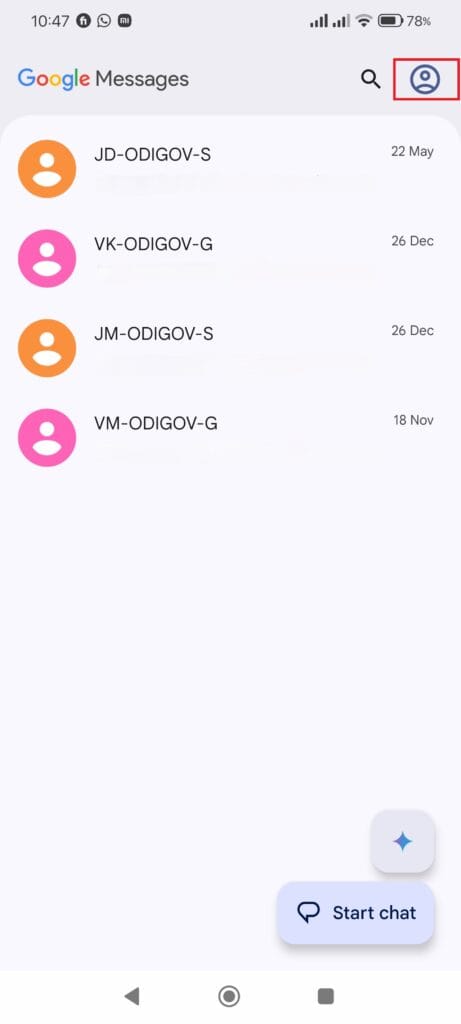
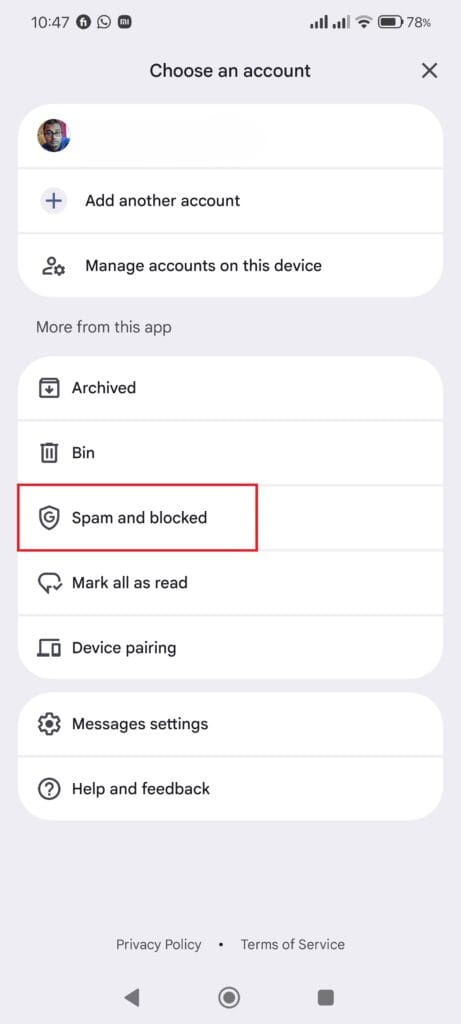
Your messaging app may be quietly filtering out texts you are expecting. Most Android messaging apps, including Google Messages, automatically route messages from unknown or flagged senders to a spam or junk folder. Additionally, if you have ever blocked a contact and forgotten about it, their messages will not appear in your main inbox.
Open your default messaging app and look for a “Spam and blocked” or “Blocked messages” section, usually found in the app’s menu or settings. Review any messages stored there. If you find legitimate texts, unblock the sender or mark their messages as “Not spam.”
If you use Google Messages specifically, tap the three-dot menu in the top right corner, go to “Spam and blocked,” and check what is there.
5. Disable Do Not Disturb Mode
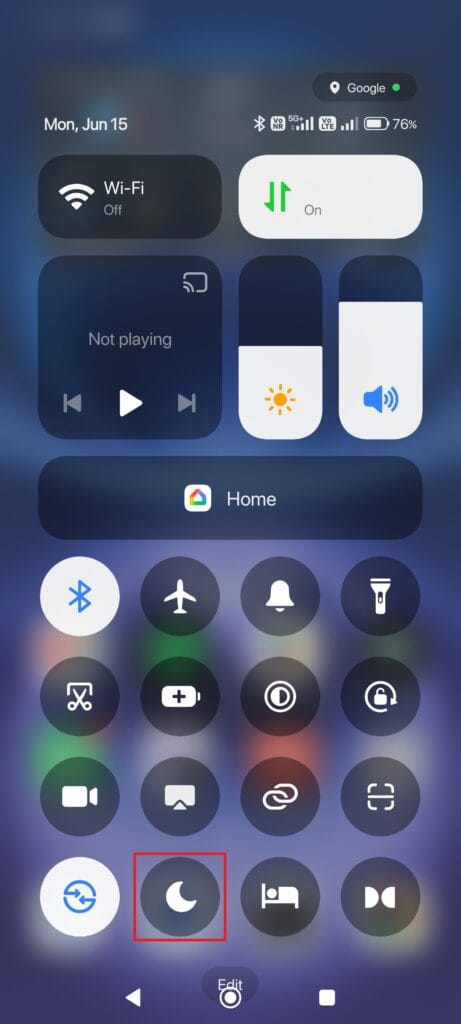
Do Not Disturb mode silences notifications and, depending on your settings, can prevent message alerts from appearing entirely. If someone sent you a text while this mode was active, you might have missed the notification even though the message technically arrived.
However, some configurations go further and can interfere with how texts are processed. Go to Settings, search for “Do Not Disturb,” and make sure it is turned off. Also check that no scheduled Do Not Disturb rules are set to activate automatically during certain hours.
6. Verify Your Default Messaging App
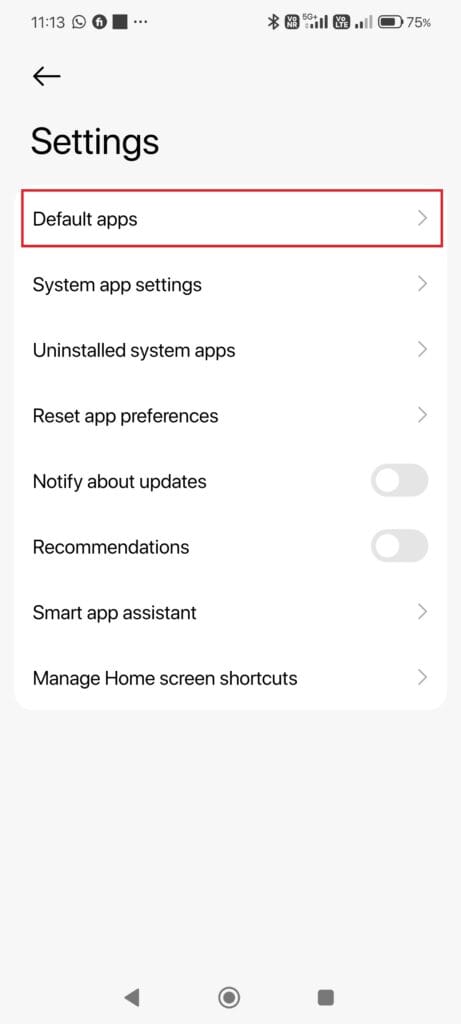
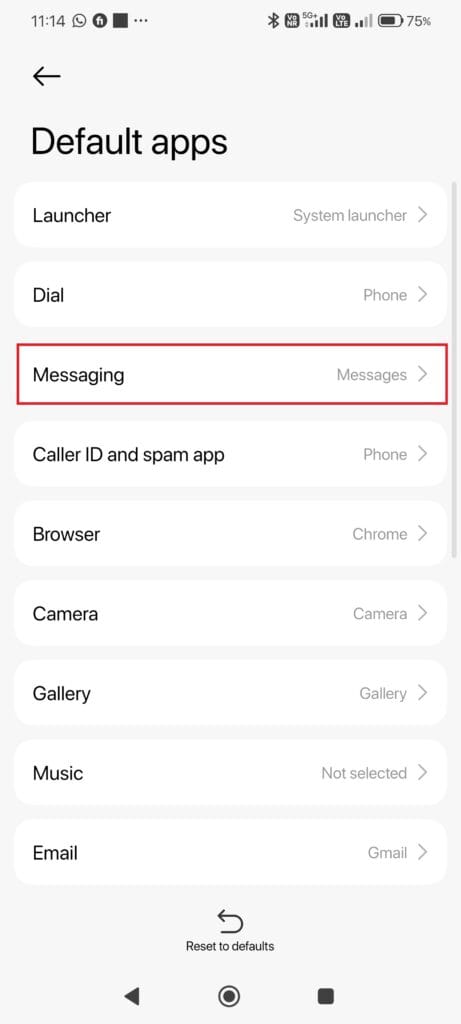
Android allows multiple messaging apps to be installed simultaneously, but only one can serve as the default. If you recently installed a new SMS app or updated your phone, the default may have changed without your knowledge. When the wrong app is set as the default, incoming messages might go to an app you are not actively checking.
To fix this, go to Settings, then Apps (or Application Manager). Look for your preferred messaging app, tap it, and check whether it is set as the default. Alternatively, go to Settings, then Default Apps, then SMS App, and select your preferred messaging application.
7. Clear the Cache and Data of Your Messaging App
Over time, corrupted cache files can cause your messaging app to behave erratically, including failing to receive new texts. Clearing the cache removes these temporary files without deleting your messages. If that does not help, clearing the app data will reset the app to a fresh state, though this will erase your message history.
Navigate to Settings, then Apps, find your messaging app, and tap “Storage.” First try “Clear Cache” and check if texts start arriving. If the problem persists, tap “Clear Data,” but be aware this will remove saved messages from that app.
8. Check Storage Space on Your Phone
When your Android phone runs out of internal storage, it may not be able to receive or save new SMS messages. Some older devices and budget Android phones have stricter storage thresholds for receiving texts.
Go to Settings and check your storage. If your phone is nearly full, free up space by deleting old photos, apps you no longer use, downloaded files, or large videos. Aim to keep at least a few hundred megabytes free to ensure your phone can function properly.
9. Update Your Messaging App and Android System
Outdated software is a surprisingly common cause of SMS problems. App developers and phone manufacturers regularly push updates that fix known bugs, including issues with receiving text messages. Skipping these updates can leave your device running buggy code.
Open the Google Play Store and search for your messaging app. If an update is available, install it. Similarly, go to Settings, then System, then System Update to check whether your Android operating system needs updating. Installing pending updates takes a few minutes but can resolve issues that have been lingering for weeks.
10. Confirm Your SIM Card Is Properly Seated
A loose or improperly inserted SIM card can interrupt your phone’s ability to connect to the cellular network, preventing texts from coming through. This is especially common after dropping your phone or recently switching SIM cards.
Power off your device, use a SIM ejector tool or a straightened paperclip to remove the SIM tray, carefully take out the SIM card, inspect it for damage or dust, and reinsert it firmly. Power the phone back on and check whether the issue is resolved. If you have a dual SIM phone, also confirm that SMS is set to route through the correct SIM slot in your messaging settings.
11. Reset Your Network Settings
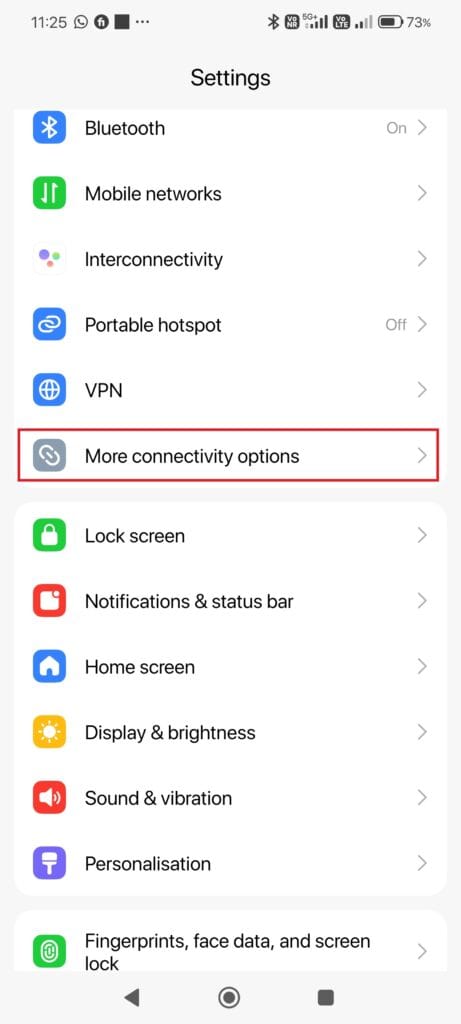
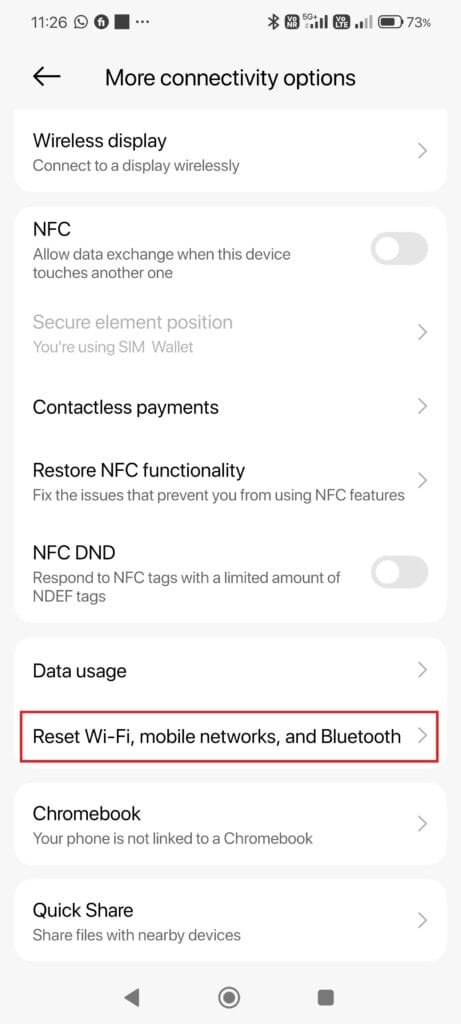
If none of the above steps have worked, resetting your network settings can resolve deeper connectivity problems that affect SMS delivery. This resets all Wi-Fi passwords, Bluetooth pairings, and cellular settings, so you will need to reconnect to your networks afterward.
Go to Settings, then General Management (or System, depending on your Android version), then Reset, and choose “Reset Network Settings.” Confirm and let your phone restart. Once it is back on, test whether texts are now coming through.
12. Contact Your Carrier
Some text message delivery issues originate with your mobile network provider rather than your phone. Problems like an incorrect SMS center number, an account error, or a network outage on the carrier’s end are all outside your control but can be fixed quickly with a phone call or live chat.
Contact your carrier’s customer support and let them know your Android phone is not receiving SMS messages. They can check your account, confirm your SMS center number is correctly registered, and flag any network-side issues affecting your line. In some cases, they may push an over-the-air update to your SIM that resolves the problem.
13. Check for Third-Party App Interference
Certain third-party apps, particularly battery optimization tools, security apps, and aggressive task killers, can interfere with your messaging app by restricting its background activity. When a messaging app cannot run in the background, it may fail to receive new texts.
Review which apps have been granted battery optimization restrictions. Go to Settings, then Battery, then Battery Optimization or App Battery Usage. Find your messaging app and ensure it is set to “Not Optimized” or “Unrestricted” so it can run freely in the background without being shut down by the system.
FAQs
This can happen when an iPhone user has your number registered in iMessage. If they recently switched to or from an iPhone, their messages may still route through Apple’s iMessage system rather than as standard SMS. Ask them to check their iMessage settings and ensure your number is deregistered from iMessage.
Yes. On many Android devices, if your SMS storage is at its limit, new messages may be rejected or overwrite older ones. Deleting old conversations frees up space for incoming texts.
A factory reset is a last resort that erases everything on your device. Try all the steps above first. If nothing works and your carrier confirms there is no account issue, a factory reset may resolve a deep software problem, but always back up your data first.
If texts from a specific contact are not arriving, check whether you have accidentally blocked them. Open your messaging app settings or your phone’s call and message blocking list to confirm.
Read More:
Android Voicemail Made Easy: What It Is and How to Set It Up
Comments
Loading…