
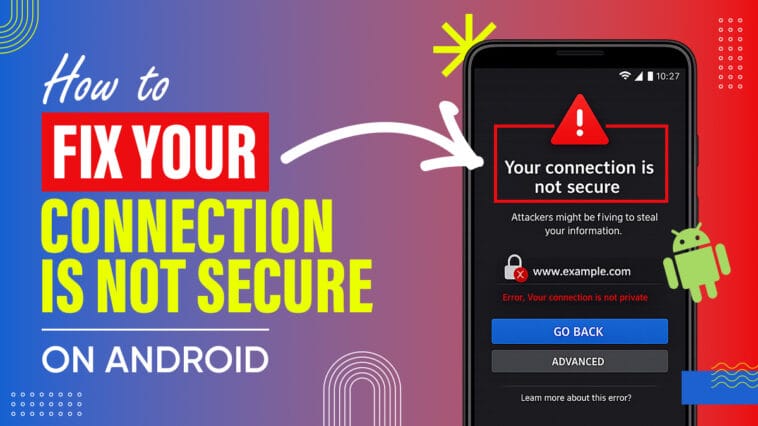
If your Android phone suddenly displays a “Your Connection Is Not Secure” or “Your Connection Is Not Private” warning while you try to visit a website, don’t panic. In most cases, it doesn’t mean your phone has been hacked. Instead, it’s a security feature designed to protect your personal information from unsafe or improperly configured websites. The warning can appear for several reasons, including an expired SSL certificate, incorrect date and time settings, browser cache issues, network problems, or public Wi-Fi risks. In this guide, you’ll learn what causes the ‘Your Connection Is Not Secure’ error on Android, how to fix it step by step, and when the issue is with the website rather than your device.
What Does “Your Connection Is Not Secure” Actually Mean?
Every time you open a website that starts with https://, your phone and the website’s server perform a quick handshake. The server presents a digital certificate, kind of like showing ID at a checkpoint, and your browser checks whether that certificate is valid, current, and issued by an authority it trusts.
When that check fails for any reason, Chrome (and most other browsers) refuses to load the page normally. Instead, you get a full-screen warning telling you the connection isn’t secure or isn’t private. This isn’t the browser being dramatic. It’s doing exactly what it’s supposed to do: refusing to hand over your data (passwords, card numbers, messages) to a connection it can’t verify.
Depending on your browser and Android version, you might see slightly different wording:
- “Your connection is not private” (most common on Chrome)
- “Your connection is not secure” (Firefox, Samsung Internet)
- “Privacy error” or “Attackers might be trying to steal your information”
- A specific error code like NET::ERR_CERT_AUTHORITY_INVALID
They all point to the same root issue: a certificate that your device can’t confirm is trustworthy.
Why Does This Error Show Up So Often on Android Specifically?
Android phones run into this more than desktop computers for a few practical reasons. Phones constantly hop between Wi-Fi networks, many of which have their own quirks (coffee shop hotspots, hotel networks, office guest Wi-Fi). Phones also carry more background apps that touch your network traffic, like VPNs, antivirus tools, and ad blockers, any of which can interfere with the SSL handshake. And because phones get moved through airports, basements, and other places with spotty signal, small clock drift and DNS hiccups are more common than on a desktop that’s plugged in and connected to the same router every day.
Common Causes of ‘Your Connection Is Not Secure’ Error
Here’s what’s usually behind it, roughly ordered from most to least common:
- Wrong date or time on your phone. Certificates are time-stamped, so if your clock is off by even a day, the math fails.
- Corrupted or outdated browser cache and cookies. Your phone remembers an old version of a site’s certificate.
- An expired or misconfigured certificate on the website itself. This one has nothing to do with your phone.
- VPN apps that route or inspect your traffic, sometimes swapping in their own certificate.
- Antivirus or “web protection” apps that scan HTTPS traffic using their own root certificate.
- Public Wi-Fi captive portals, especially right after connecting, before you’ve logged into the network’s sign-in page.
- Incorrect DNS or Private DNS settings pointing you to the wrong server.
- Outdated Android system software missing current root certificates.
- A firewall, parental control app, or company-managed device profile intercepting traffic.
- An actual man-in-the-middle situation, rare, but real, especially on untrusted public networks.
Quick Fixes to Try First
Before you touch any settings, try these in order. They solve the majority of cases:
- Reload the page. Sounds too simple, but a lot of these errors are momentary glitches that vanish on a second try.
- Check your date and time. Go to Settings, search “date,” and turn on automatic date and time if it’s off.
- Switch networks. Turn off Wi-Fi and try mobile data, or vice versa. If the error disappears, the problem is network-side, not your phone.
- Restart your phone. This clears temporary memory issues that can quietly break certificate checks.
- Try a different browser. If Chrome shows the warning but Firefox doesn’t (or the reverse), you’ve just narrowed the problem down to that specific app.
If none of those clear it, move on to the deeper fixes below.
Step-by-Step Fixes for Google Chrome on Android
1. Clear cache and cookies: Open Chrome, tap the three dots in the top right, tap History, then Clear browsing data. Choose “All time” as the range, check “Cookies and site data” and “Cached images and files,” then tap Delete data. This clears out old, possibly corrupted certificate records Chrome has stored locally.
2. Check Chrome’s security settings: Go to Settings inside Chrome, then Privacy and security, then Security. Make sure “Standard protection” or “Enhanced protection” is selected under Safe Browsing. If “Always use secure connections” is turned on, try toggling it off temporarily. This setting forces HTTPS upgrades and can occasionally misfire on sites with unusual certificate setups.
3. Update Chrome: An outdated browser may not recognize newer certificate authorities. Open the Play Store, search Chrome, and tap Update if one’s available.
4. Clear Chrome’s app cache at the system level: Go to Settings on your phone, then Apps, then Chrome, then Storage, then Clear cache. This is different from clearing cache inside Chrome itself and sometimes catches what the in-app method misses.
5. Check the certificate details: If the site loads but shows a warning, tap the padlock or “Not secure” text in the address bar to see certificate details, including who issued it and when it expires. This tells you whether it’s a date problem, a mismatched domain, or an untrusted issuer.
Advanced Android Network Fixes
If the basic steps didn’t work, the problem is likely deeper in your network configuration.
DNS and Private DNS Troubleshooting
Go to Settings, then Network & internet, then Private DNS. If you’ve set a custom provider hostname here, try switching it to “Automatic” and see if that resolves the error. A misconfigured or unreachable private DNS server can cause certificate mismatches because your phone ends up connecting to the wrong server entirely.
If you’re on Wi-Fi and the router itself uses an unusual DNS setup, you can also try connecting to mobile data as a test. If HTTPS sites suddenly work fine, the DNS on that particular Wi-Fi network is the culprit, and it’s worth mentioning to whoever manages that router.
VPN Troubleshooting
VPN apps sit between your phone and the internet, which means they can absolutely affect certificate checks. Try this:
- Turn the VPN off completely.
- Reload the site.
- If it loads fine, the VPN was interfering, possibly through its own traffic inspection or a misconfigured connection.
- If you need the VPN active, try switching servers or contacting the VPN provider, since some free or poorly maintained VPN services are known for this exact issue.
Reset Network Settings
This is a broader fix that clears Wi-Fi passwords, Bluetooth pairings, and VPN configurations, resetting everything back to factory defaults.
- Stock Android (Pixel, and most others): Settings, then System, then Reset options, then Reset Wi-Fi, mobile & Bluetooth, then confirm.
- Samsung: Settings, then General management, then Reset, and then reset network settings.
- Xiaomi, Oppo, Vivo, OnePlus: Usually found under Settings, then Additional settings (or About phone), then Backup & reset, then Reset network settings. Menu names vary slightly by device.
You’ll need to reconnect to Wi-Fi networks and re-pair Bluetooth devices afterward, so only use this if the lighter fixes haven’t worked.
Update Your Android System
Android updates don’t just add features, they also refresh the list of trusted root certificates your phone recognizes. An old, unpatched version of Android might reject a certificate from a newer certificate authority simply because it doesn’t know about it yet.
To check: Settings, then System, then System update (or Software update, depending on your brand).
Antivirus and Security App Interference
Many mobile antivirus and “safe browsing” apps scan HTTPS traffic by installing their own certificate on your device and technically performing a legitimate man-in-the-middle inspection to check for threats. Temporarily disable real-time web protection in your antivirus app (not the whole app, just the web scanning feature) and reload the site. If the warning disappears, you’ve found your cause. You can usually re-enable protection afterward once you’ve confirmed the app is up to date.
Router-Side Issues
Occasionally the problem sits with your home router rather than your phone. Outdated router firmware, a misconfigured DNS setting on the router itself, or a compromised router can all cause certificate errors for every device connected to it, not just your Android phone. If other devices on the same Wi-Fi network show the same warning, check your router’s admin panel for firmware updates or consider a reboot.
Prevention Tips
- Keep automatic date and time turned on at all times.
- Update Android and your browser regularly instead of postponing update prompts.
- Avoid installing DNS or VPN apps from unknown developers with few reviews.
- Be cautious entering personal information on public Wi-Fi, even if no warning appears.
- Periodically clear browser cache, roughly once a month is plenty for most people.
- Check the padlock icon before logging into anything sensitive, especially on unfamiliar sites.
FAQs
It means your browser couldn’t verify the website’s SSL certificate, so it’s blocking the page to protect you from a potentially unsafe connection.
It depends on the site and what you’re doing there. Reading a public blog is low risk. Logging in or entering payment details is not something you should do past this warning.
Yes. Some VPNs intercept or reroute HTTPS traffic in ways that break the normal certificate chain, especially lower-quality free VPN apps.
Sometimes. It helps when the problem is outdated certificate data stored locally on your phone. It won’t help if the certificate problem is on the website’s server.
Yes, especially right after connecting, before you’ve completed the network’s login page.
The cause is identical, but the wording and error details differ slightly between Chrome, Firefox, Samsung Internet, and Edge.
Read more:
What Are Proxy Settings? A Simple Guide for Beginners
How To Reset Android Phone When Locked


Comments
Loading…